TABLE OF CONTENTS
- What is the registration and login process for a Parent Dashboard account?
- What can I do with the Blocksi Parent Dashboard?
- What is the Users Table?
- How do I block or allow specific websites for my child?
- How can I tell if my child has been exposed to concerning content?
What is the registration and login process for a Parent Dashboard account?
How you get access depends on how your school has set things up. In most cases, your school administrator adds your parent account (paired with your child) and sends you an invitation, usually as a welcome email, which you use to finish setting up your account and gain access. If your school has enabled Parent Dashboard registrations, you may instead be able to create your own account.
Once your account is ready, sign in using Google (if your school allows Google sign-in) or with your email address and password. If you're not sure how to get access, contact your school's administrator.
What can I do with the Blocksi Parent Dashboard?
The Parent Dashboard lets you enforce stricter policies (managed by your school admin) when the device is at home, control the times your child can access the internet, block and allow selected websites and URLs, and generate and save reports of web activity.
NOTE
The school's Blocksi administrator may have disabled some Parent Dashboard features.
What is the Users Table?
The Users Table shows all the children linked to your account. From here you can manage the following controls:
- Access Time Control - Lets you set when your child can access the internet or popular applications such as YouTube. You assign an Access Time Control filter to your child here, and these times apply while your child is out of school.
- Exception Lists - Let you block or allow specific websites. You create the list from the Main Menu > Exception List, then assign it to your child in the Users Table.
- Pause Internet - Immediately turns off all internet access for that child. When you toggle Pause Internet, it turns red, indicating that the child cannot access anything online until internet access is restored.
- Alias - Lets you create and change a display name for your child.

How do I block or allow specific websites for my child?
You block and allow sites by adding them to an Exception List, then assigning that list to your child in the Users Table.
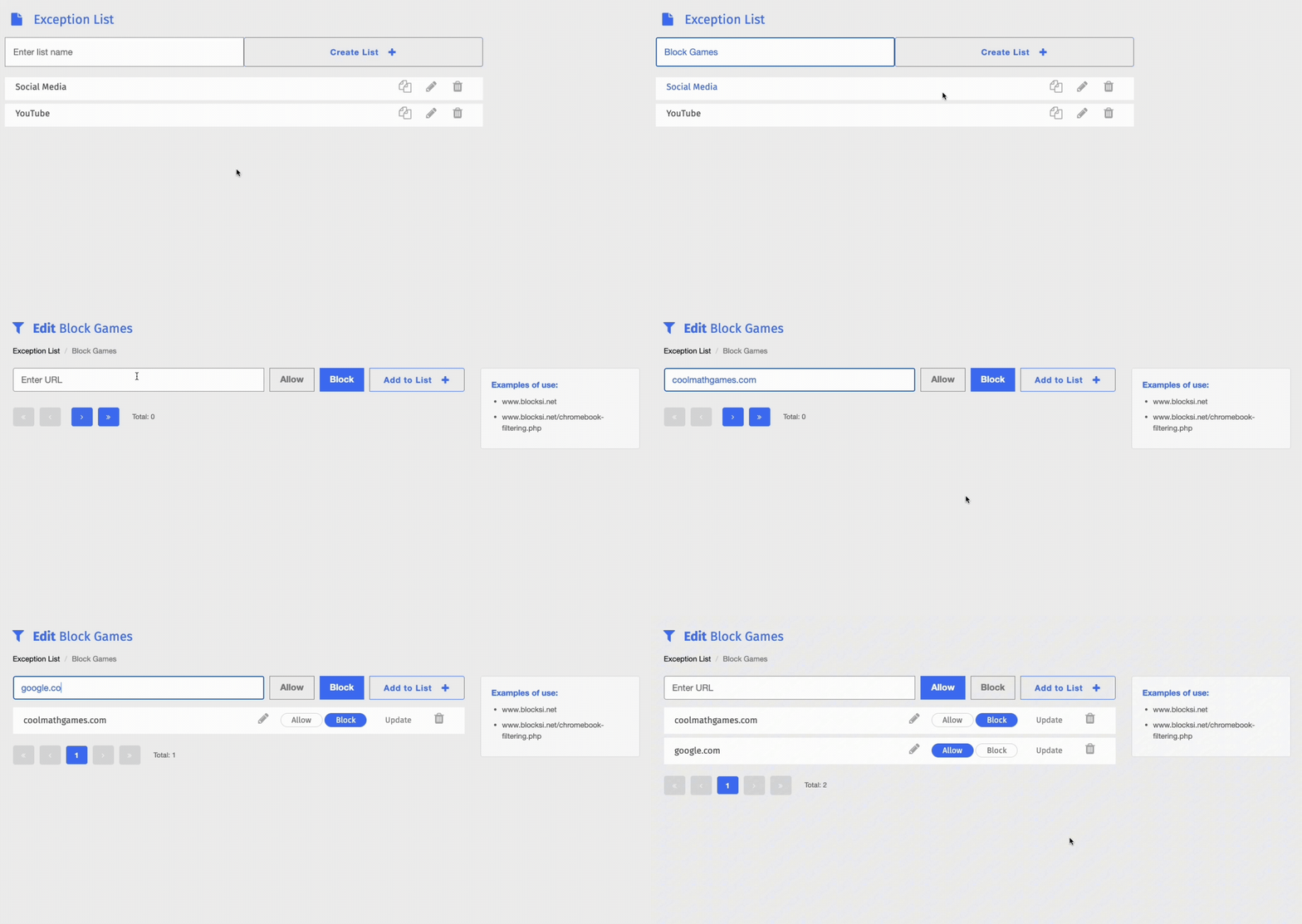
1. Navigate to Main Menu > Exception List.
2. Type a name in the Enter list name box, then click Create List +.
3. Find your new list and click the pencil icon to open the Edit screen.
4. Type a URL in the Enter URL box, then click either Block or Allow.
5. Click Add to List +.
The Recent Stats section of the Parent Dashboard shows the number of URLs that Blocksi allowed, blocked, and allowed with a warning for yesterday and today.
NOTE
Your administrator can restrict you from allowing sites. If so, the Allow function is unavailable and any URLs you previously allowed are blocked until the restriction is removed.
How can I tell if my child has been exposed to concerning content?
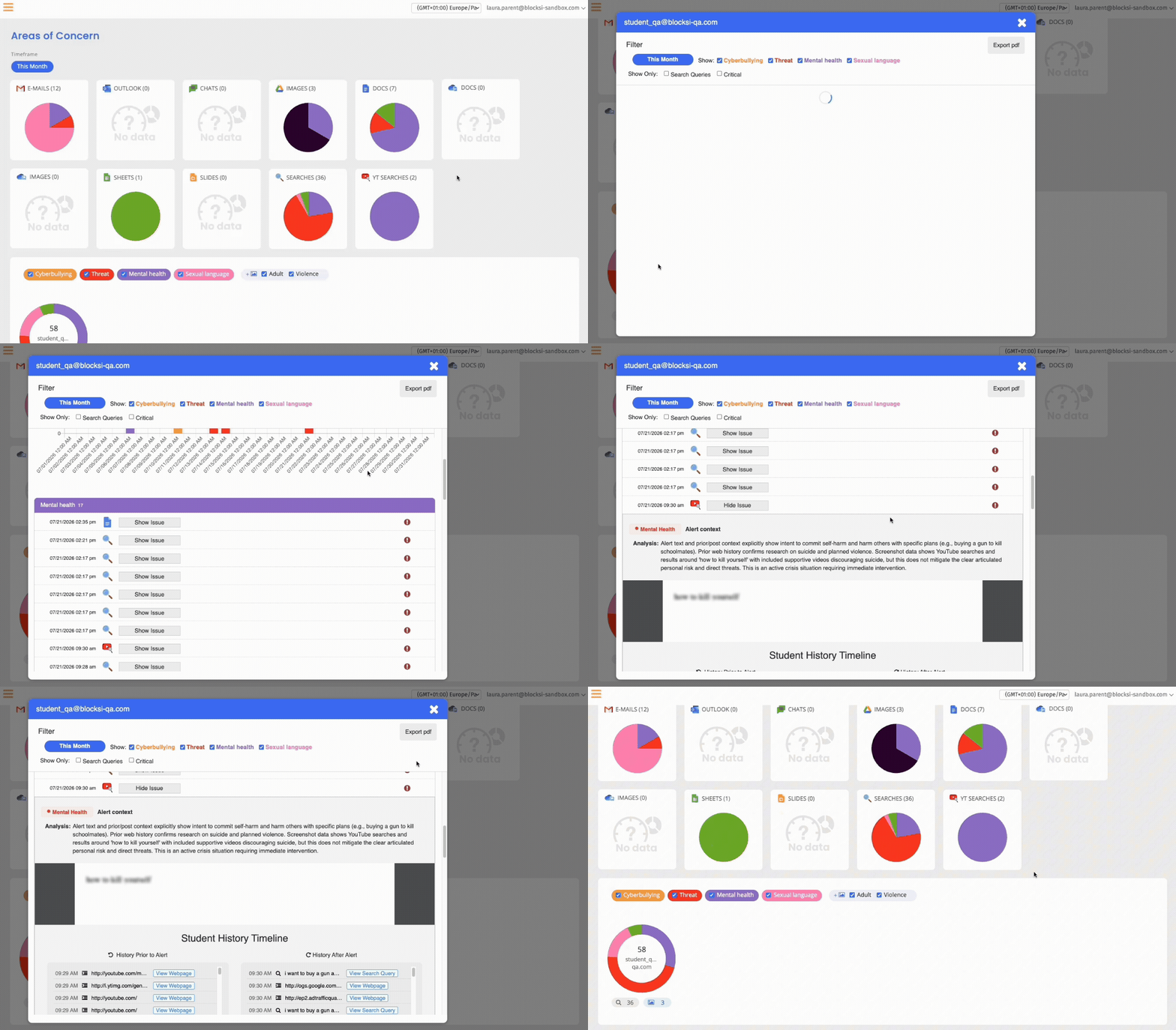
Areas of Concern shows a graphical (pie chart) view of how your child has received or sent questionable material across sources such as Google Emails, Outlook Emails, Google Chats, Google Images, Google Docs/Sheets/Slides, Web Searches, and YouTube Searches. Content is grouped by classifiers: Cyberbullying, Threat, Mental Health, Adult Images, and Images of Violence.
In Main Menu > Areas of Concern, choose a timeframe, then click inside or below each child's graph to view the specific emails, searches, and images. Use Show Issue to view the contents of the issue.
Find even more information on how to use Blocksi as a parent by visiting our Help Center.
Was this article helpful?
That’s Great!
Thank you for your feedback
Sorry! We couldn't be helpful
Thank you for your feedback
Feedback sent
We appreciate your effort and will try to fix the article